Enable Template Path Hints in OpenMage
When you customize the HTML of a Magento 1 / OpenMage storefront, the hardest part is usually finding which template renders a given block. Magento ships a built-in developer feature called template path hints that overlays the path of every .phtml file directly on the page.
Enable template path hints
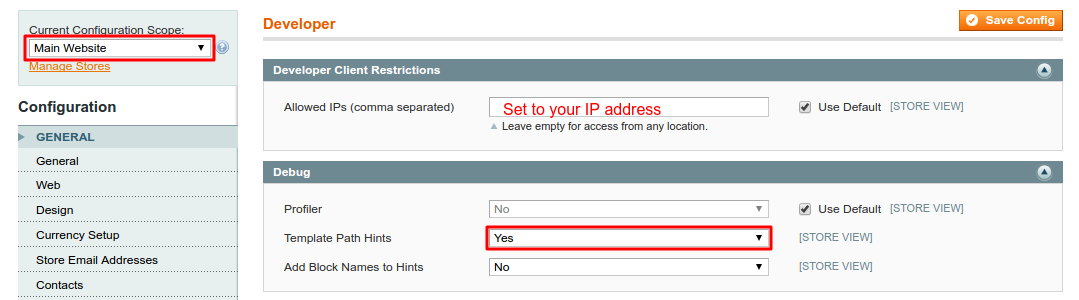
- In the admin panel, open System → Configuration → Advanced → Developer.
- Switch the Current Configuration Scope (top left) from Default Config to the website you want to debug — the Debug section only appears in website or store scope.
- In the Debug section, set Template Path Hints to Yes.
- Recommended: set Add Block Names to Hints to Yes to also show the block class behind each template.
- To keep the hints visible to you only, add your IP under Developer → Developer Client Restrictions → Allowed IPs.
- Save the configuration and reload the storefront.
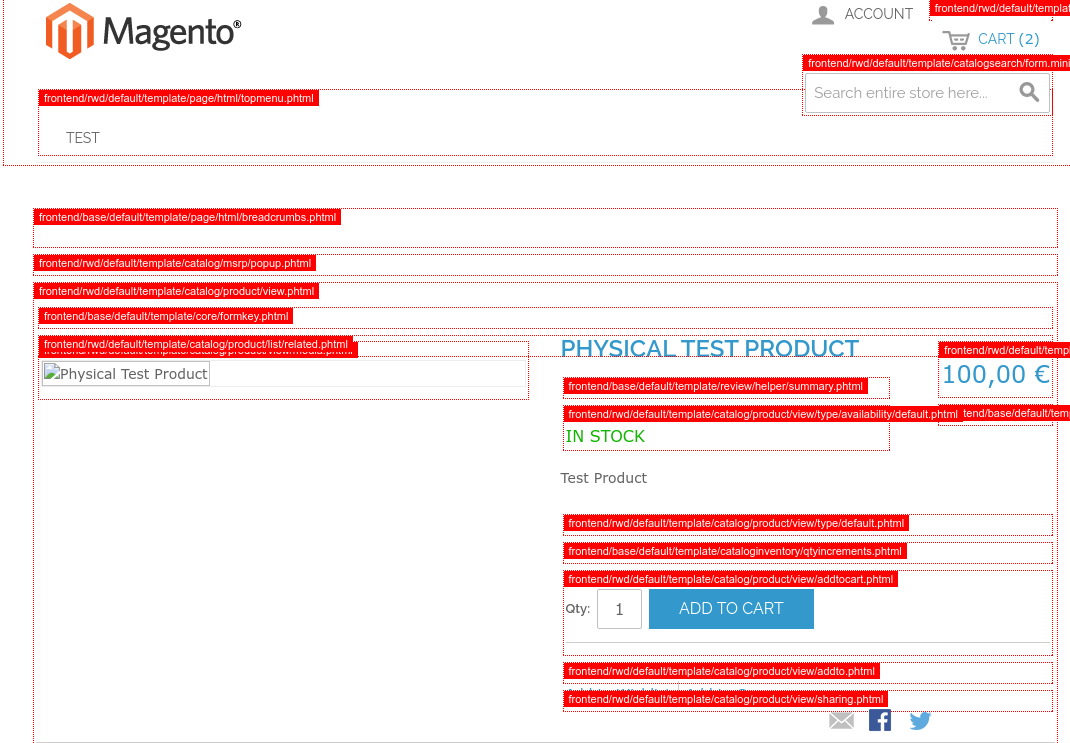
Every block on the current page is now framed with the path of the template that renders it, so you can pinpoint the exact file to edit:
Good to know
- Path hints render in the frontend only, never in the admin.
- Restricting by Allowed IPs lets you debug a live shop without exposing the hints to customers.
- Switch the option back to No when you are done.
Post Comments
Be the first to share your thoughts on this post.
Submit Comment