EU VAT Enhanced
Installation
Requirements
- Check your PHP installation for the SOAP extension - SOAP must be enabled so that you can connect to the MIAS interface (if you do not know what this is, please contact your web hosting provider - they can help you with this question)
- Make sure you have FTP/SFTP access in order to copy the extension files to your Magento installation
Procedure
You can now proceed with the installation as follows:
- Navigate to "System → Cache Management" and disable/clear all Magento caches and disable the Magento compiler (if enabled)
- Upload the directories "app" and "js" (in the src folder of your download package) to your Magento root directory ("app"⇒"app" and "js"⇒"js")
- If you are currently logged in to the Magento Admin, please log out and log back in so that your admin account receives the permissions required to edit the extension configuration
- Recompile and re-enable the compiler if it was enabled before the installation. Navigate to "System → Cache Management" and refresh/enable all caches
The installation process is now complete. In the next step, you need to configure Magento for VAT and set up the extension.
Magento VAT Configuration
Configuring Magento for VAT is not that hard once you have it up and running. Please note that you may not need to perform the steps for configuring VAT in Magento if you already have a productive installation and are not starting from scratch. This is especially the case if you use one of the following extensions: Firegento GermanSetup or Firegento MageSetup - both come with a similar installer that configures Magento for VAT and further legal requirements for EU countries.
Automatic Configuration
It is very easy to use our automatic setup to configure VAT for your Magento installation. The setup takes care of creating the required tax classes, tax rates and tax rules as well as configuring the store.
After a successful installation, you should be able to see the setup notice in the admin area. To perform the setup, click the "Setup" link. If you have already configured Magento for VAT, you can also skip the setup.
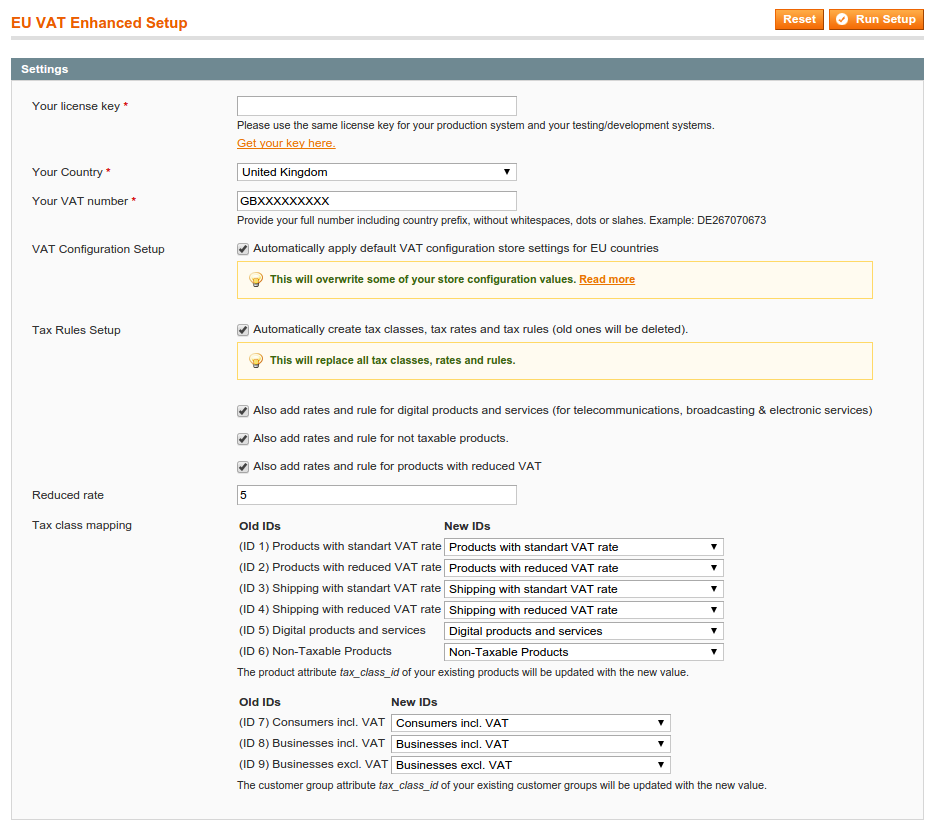
 The following page is displayed. On this page, you fill in the required fields with your data.
 #### Set up the VAT configuration
The automatic setup sets/overwrites the following store configuration settings:
- 'General/Country/Default' ⇒ Is set to the country you selected in the setup form
- 'tax/classes/shipping_tax_class' ⇒ Is set to the tax class ID for shipping
- 'tax/calculation/based_on' ⇒ Is set to 'shipping'
- 'tax/defaults/country' ⇒ Is set to the country you selected in the setup form
- 'shipping/origin/country_id' ⇒ Is set to the country you selected in the setup form
- 'customer/create_account/auto_group_assign' ⇒ Is set to disabled
- customer/create_account/vat_frontend_visibility' ⇒ Is set to enabled
- 'customer/address/taxvat_show'⇒ Is set to disabled
Set up tax rules
With this option, you can automatically set up all the necessary tax classes, tax rates and rules for VAT calculation. By default, the rules for the standard VAT calculation (with the full rates of your country) are created. In addition, you can select whether you need further rules, e.g. for electronic services or reduced products.
Assignment of tax classes
In order to perform an automatic setup, the function needs to know the internal IDs of the product and customer tax classes. For this reason, we will remove the existing tax classes from your system and create new ones. Make sure that you choose the assignment of the new IDs so that it matches your requirements. Existing products and customer groups will be assigned the new IDs instead of the old ones.
Now simply click "Run Setup" to start the setup. If everything worked, you will be redirected to the extension's configuration settings.
Manual Configuration
If you do not want to use our automatic setup, you will find a guide here for the necessary steps to set up EU VAT in Magento.
Prepare product tax classes
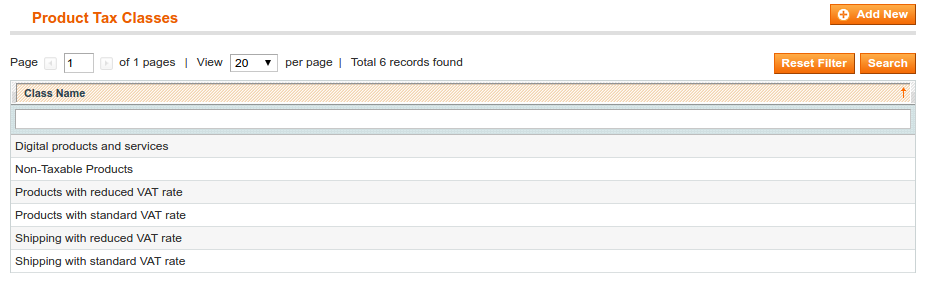
Navigate to "Sales → Tax → Product Tax Classes" and set up the following tax classes, which you can name as you like, but which should represent the meaning:
- Products with full VAT
- Products with reduced VAT
- Shipping with VAT
- For digital content or services: "Virtual products with EU country VAT" (EU MOSS)
 #### Prepare customer tax classes
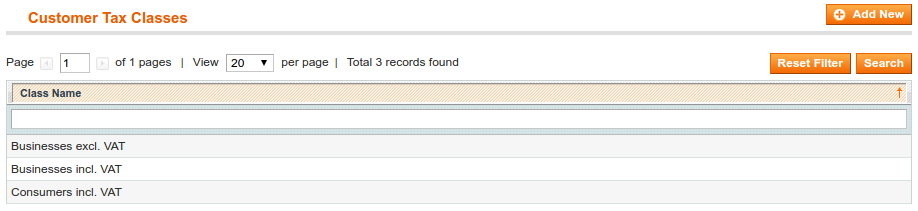
Navigate to "Sales → Tax → Customer Tax Classes" and add/edit the following customer tax classes:
- Consumers incl. VAT
- Businesses incl. VAT
- Businesses excl. VAT
 #### Create tax rates according to the tax rates of your country
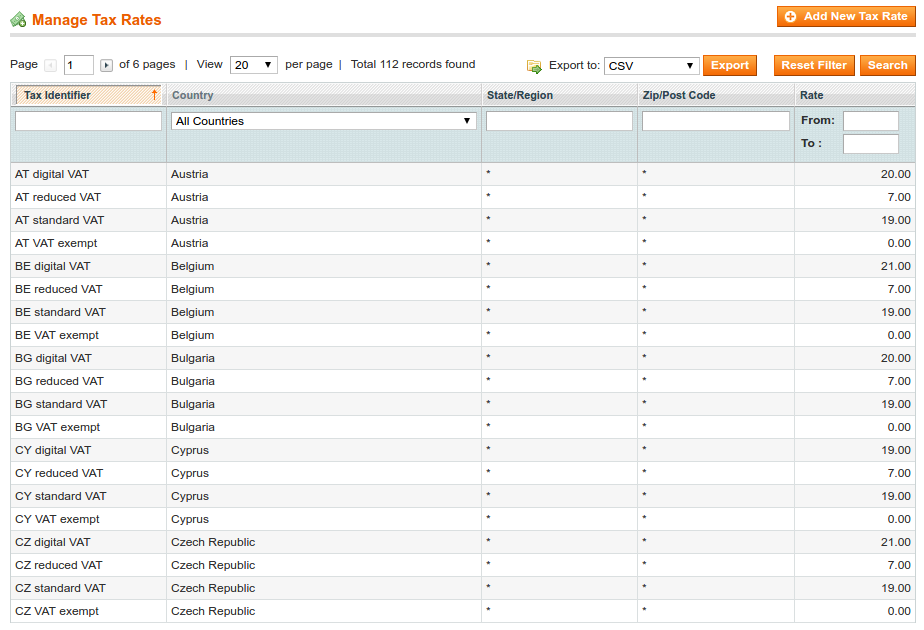
EU VAT Enhanced for Magento comes with import files for tax rates that save you from manually creating 80 or more tax rates. Normally, you would have to create a tax rate for each country you ship to, and that for each tax rate your products have.
For the new EU VAT changes for 2015, we added a file tax_rates-digital_goods-EU.csv for importing the tax rates. This file contains a complete tax rate for each EU country, which can be used with the additional tax rule for the sale of digital content or services (EU MOSS).
 #### Create tax rules
In general, you only need two tax rules in Magento for calculating VAT. One with the full standard rates and one for VAT exemption. Depending on the type of products you sell, you may additionally need to calculate a reduced rate or, for digital products, the EU country VAT rate for consumers.
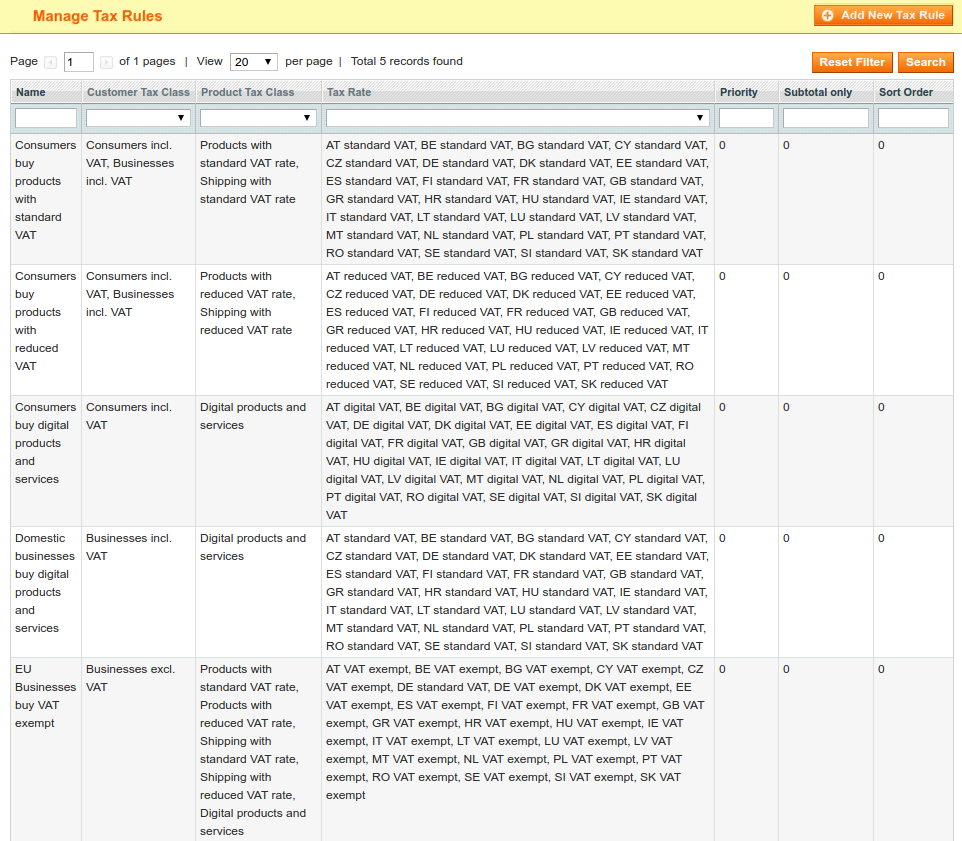 Explanation of the rules:
- Consumers buy products with standard VAT: Applied to orders with delivery to the merchant's country or when there is no valid VAT ID
- Consumers buy products with reduced VAT: As above, only with reduced rates
- Consumers buy digital products: For the EU MOSS rule, where you have to calculate the VAT rate of the customer's residence for digital products
- Domestic businesses buy digital products: For domestic businesses buying digital products, calculate the VAT rate of the country where the merchant is located
- EU businesses buy VAT-exempt: For customers with a valid VAT ID and delivery outside the merchant's country, do not calculate VAT
If you only trade in products at the standard rate, you naturally only need the first (Consumers buy products with standard VAT) and the last (EU businesses buy VAT-exempt) rule.
Prepare customer groups
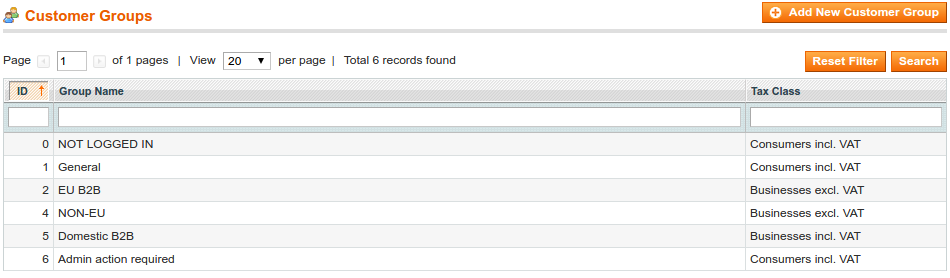
Navigate to "Customers → Customer Groups". Using customer groups is completely optional with the extension. The extension applies the customer's tax class dynamically, depending on the results of the validation of the customer's VAT ID and the shipping address. The tax class of the customer group is now just a fallback. Therefore, it is optional if you want to assign customers to groups depending on the results of the VAT ID validation, since the group and the tax class are no longer firmly linked to each other.
As a reference, we recommend these customer groups:
 #### Configuration of VAT in Magento
There are several places in the Magento system configuration where the calculation of VAT is influenced. Below, we go through the individual settings areas step by step.
Enable the input fields for the customer's VAT ID
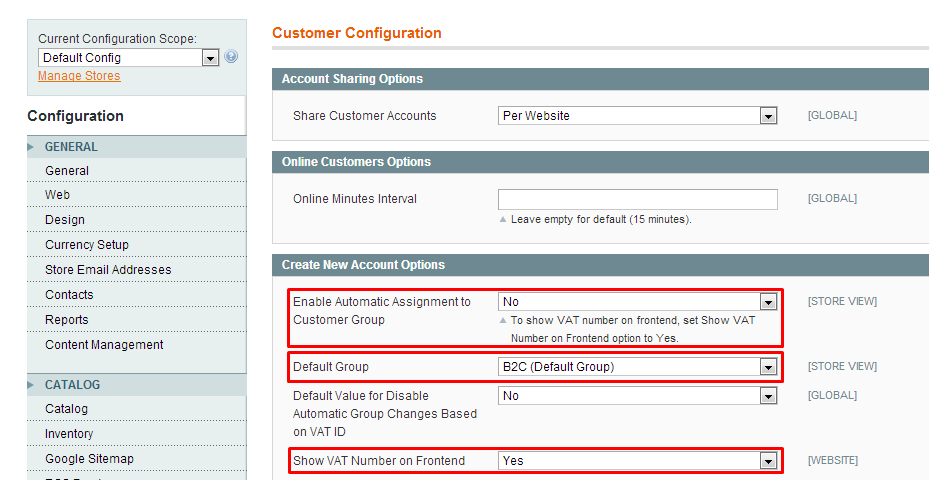
- Navigate to "System → Configuration → (Customers) Customer Configuration"
- Under the Create New Account Options, set the option Show VAT Number on Storefront to Yes
- Set your Default Group, e.g. " General
 ##### Set the tax calculation method
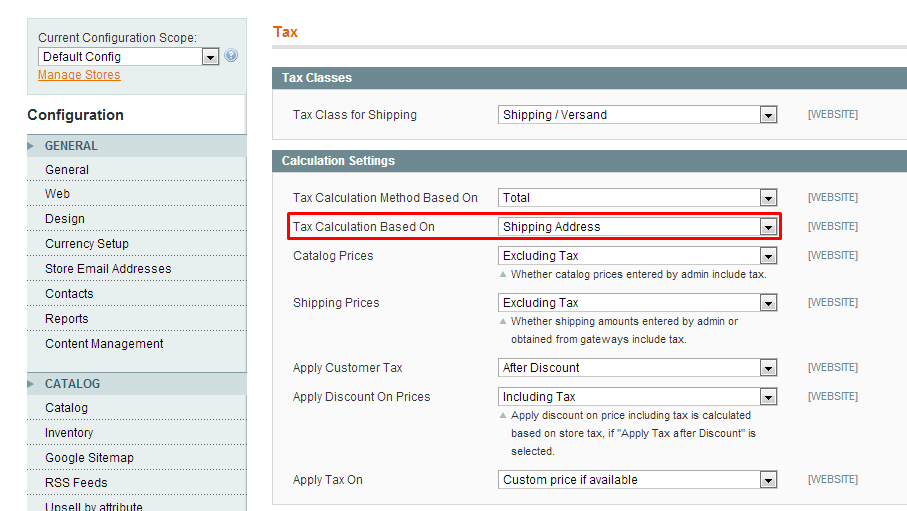
- Navigate to "System → Configuration → (Sales) Tax"
- Set the Tax Calculation Based On to "Shipping Address"
 ##### Set the shipping origin
This defines the country from which the tax calculation is performed.
- Navigate to "System → Configuration → (Sales) Shipping Settings"
- Set the merchant's country of origin
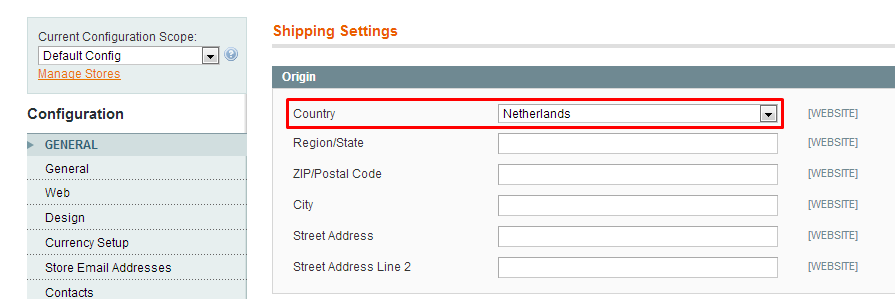 Now you have made all the settings required in Magento for the calculation of EU VAT.
Configuration of the Extension
Finally, we will go through the system configuration of the extension. There are many settings that influence how the installation of the extension calculates VAT or assigns customer groups.
General Settings
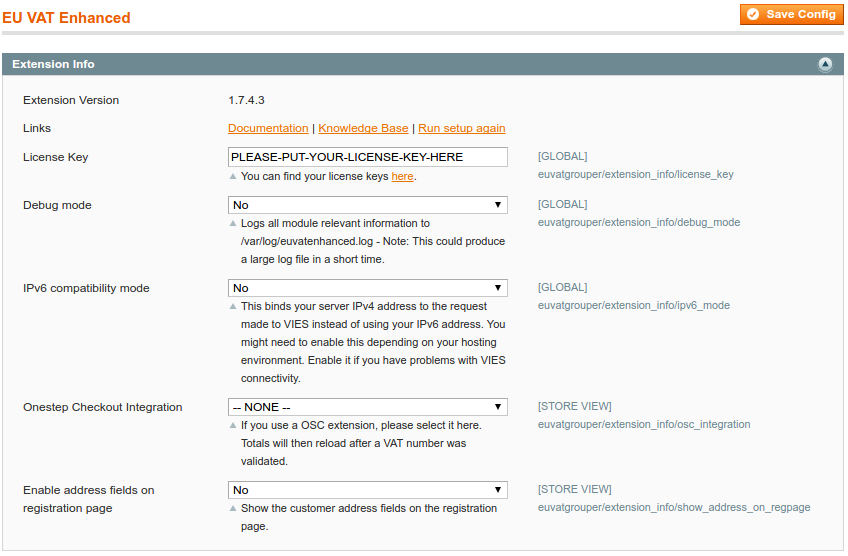 - License key: Set your license key, which you can find in your customer account under "My Downloadable Products"
- Debug mode: If you ever run into problems or just want to see how EU VAT Enhanced works in the background, turn on debug mode. It outputs relevant information to /var/log/system.log - we recommend turning it off on production systems, as it generates a large log file in a short time
- IPv6 compatibility: If you have general problems connecting to the interface, IPv6 compatibility mode can help. It depends on your server configuration whether you need this option. Turn it on and set the IPv4 address of your server to see whether the connection then works
- OneStep Checkout integration: We offer support for various OSC extensions. Please select your installed extension from the list. If your extension is missing here, please let us know. All OSC extensions can be supported
- Enable address fields on the registration page: If you want to ask for the customer's VAT ID on the customer registration page, you need to enable the address fields here.
VAT Settings
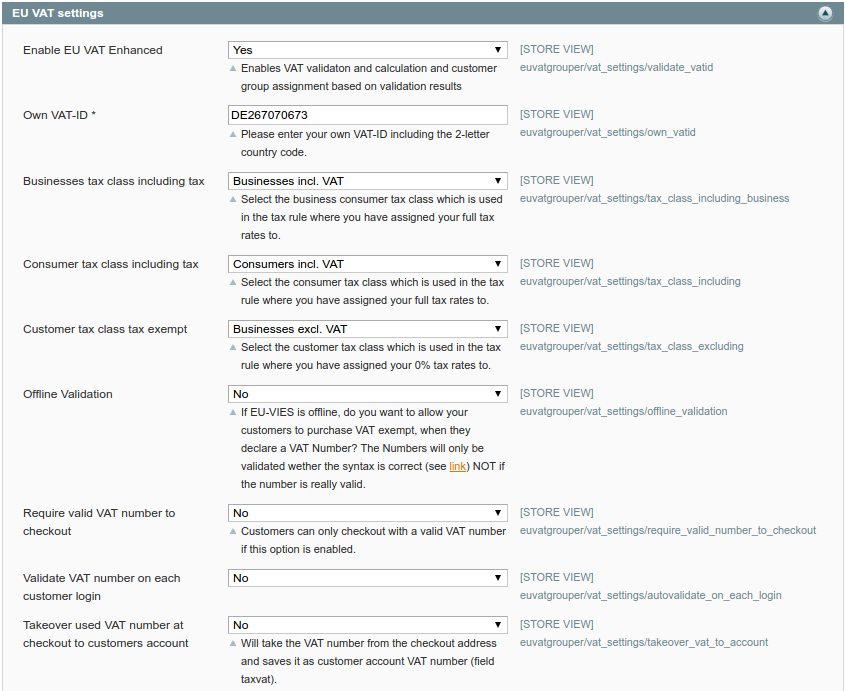
 - Enable EU VAT Enhanced: When this option is enabled, the extension takes care of VAT validation, VAT calculation and customer group assignment
- Own VAT ID: Enter the merchant company's VAT ID here. This field is required for the validation with the return of a request identifier to work
- Tax class settings: When the extension identifies the customer situation, apply these customer tax classes. This is the dynamic application of tax classes for the customer groups already mentioned
- Offline validation: Falls back to a simple syntax-based validation when the EU service is offline. We recommend disabling this feature, as the number may be syntactically valid but officially invalid
- Require a valid VAT ID for checkout: This prevents the order from being submitted and displays an error message that a valid number is required for the order
- Validate the VAT ID on every customer login and within the validation period: We recommend enabling this feature, but setting the validation period to at least 3 months. If you choose shorter periods, it could happen that the EU service blocks your server IP for requests
- Apply the VAT number used during checkout to the customer account: This supports the old account-based field for the VAT ID in Magento as a fallback. Since Magento 1.7, the VAT number should be used and stored together with the address
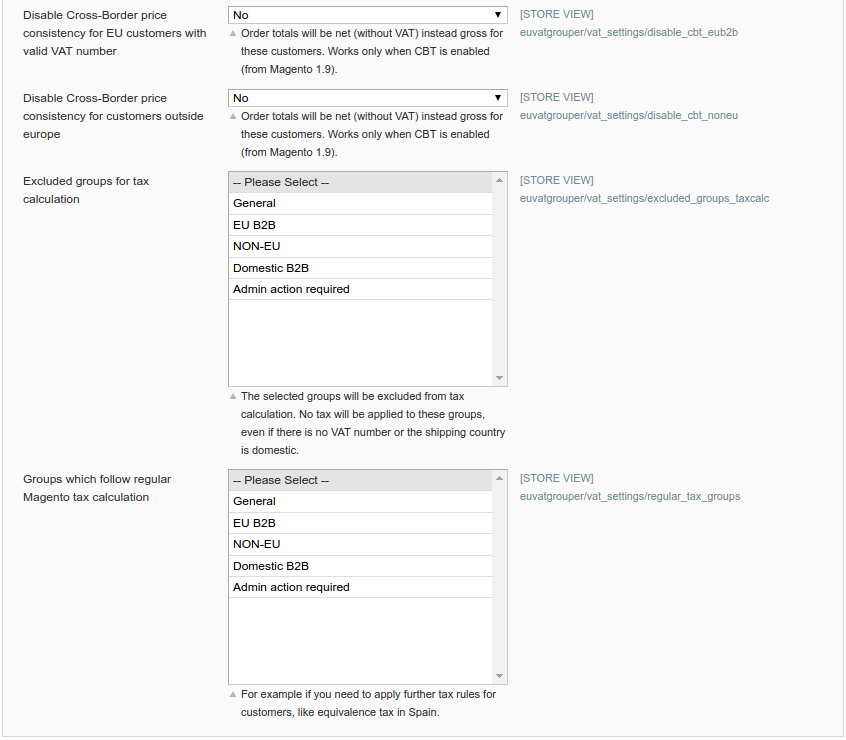
- Disable cross-border price consistency for EU customers with a valid VAT number: If you use the cross-border trade option in Magento, you need to enable this in order to get net prices instead of gross prices without VAT. The same applies to disabling cross-border price consistency for customers outside Europe
- Excluded groups for tax calculation: If you never want to calculate taxes for a specific customer group, select it here
- Groups that follow the regular Magento tax calculation: If you need to calculate taxes other than VAT, select these groups here. In Spain, for example, there is an equivalence tax. The extension does not dynamically apply one of the three customer tax classes to these groups and therefore follows the regular Magento tax calculation
Brexit
If you sell to consumers in the United Kingdom, you must follow the new UK regulations, which require you to charge 20% UK VAT for orders under 135 GBP.
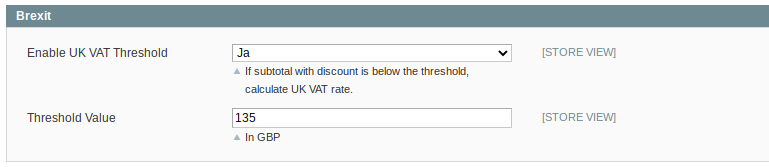
Required: Enable GBP as a currency and configure an exchange rate 1. Navigate to "System -> Configuration -> Currency Setup" 2. Add "British Pound Sterling" to the list of "Allowed Currencies" 3. Get a free API key from fixer.io and save it in the corresponding field 4. Configure a daily scheduled import 5. Click "Save Config"
Now the extension checks whether the order goes to the UK and applies VAT to the order as long as the subtotal in the cart is below the configurable threshold of 135 GBP. If it is above, the extension sets the order to 0% VAT.
Customer Group Assignment
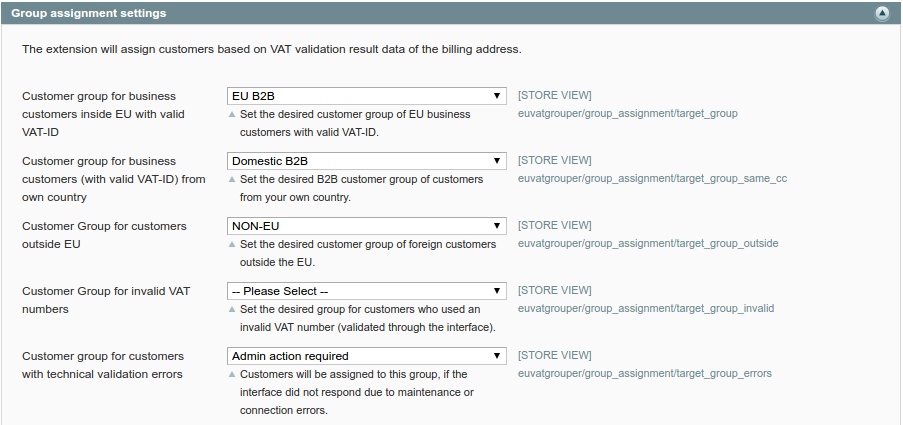
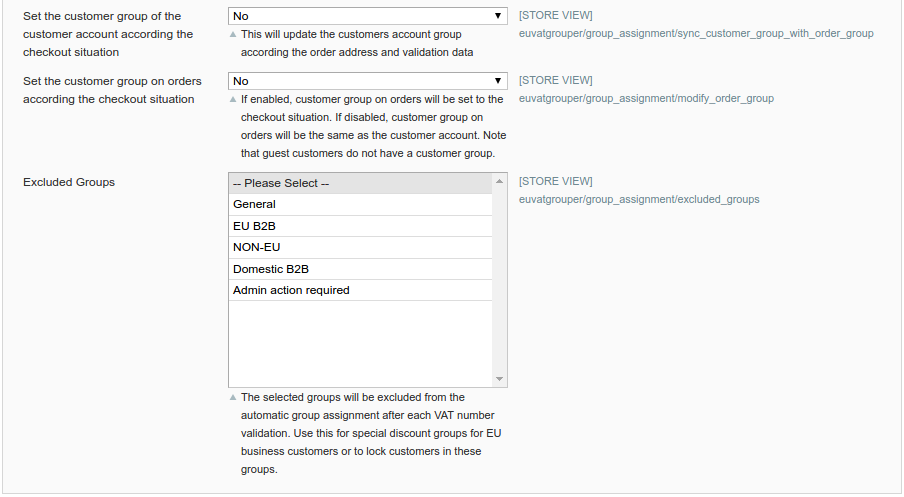 The comments on the configuration should be self-explanatory.
Validation Success Message
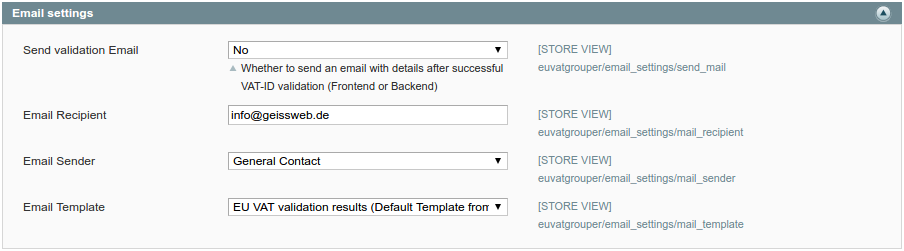 Here you can set an email template and a recipient who receives a notification every time a VAT number has been successfully validated (for guests and registered customers).