Configure VAT manually in Magento
If you do not want to use our standard setup, or if you have already configured Magento for applying VAT, or simply want to check your configuration for compatibility, please follow the individual instructions and explanations below.
For all names and labels you can of course apply your own naming.
Creating tax rules
To calculate VAT for the EU in various scenarios, you need to create appropriate tax rules. In most cases you need one rule per product tax class that you use, e.g. products with a standard, reduced or even heavily reduced tax rate. For each rule you then assign the applicable tax rate for every country you ship to.
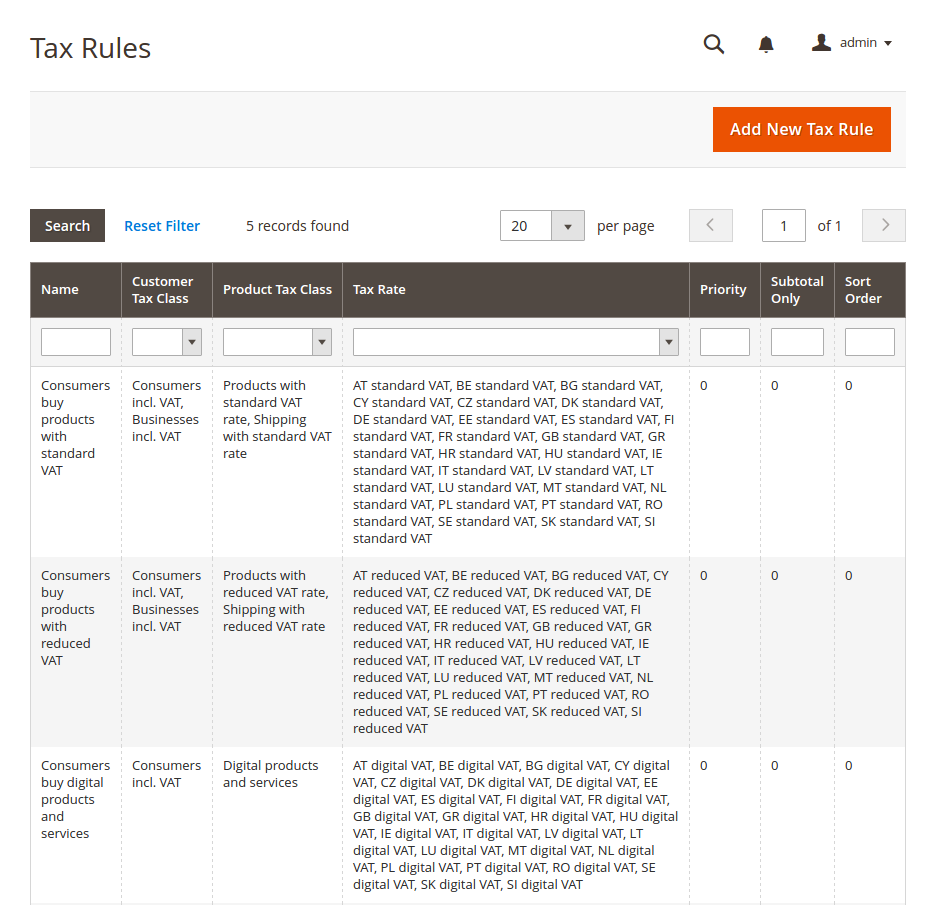
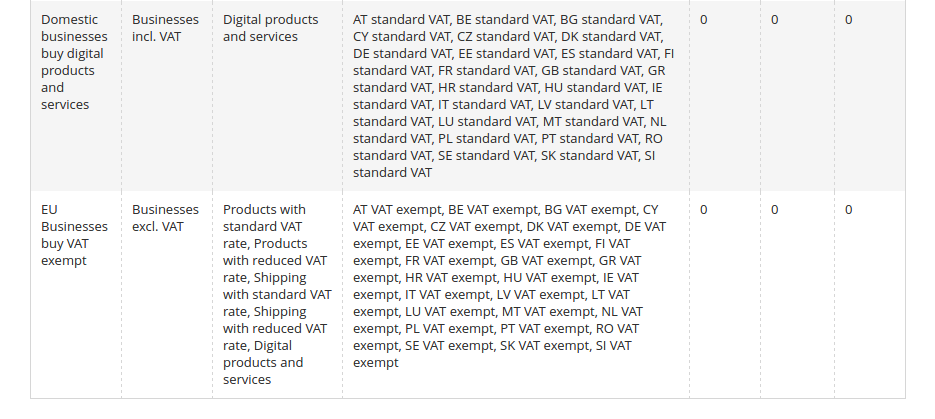
To create tax rules, please navigate to Stores → Tax Rules and create tax rules as shown below. If, for example, you only deal in products to which the standard tax rate applies, you naturally do not need to create a rule for products with a reduced tax rate either.
Explanation of the tax rules
As an example, let us imagine that the domestic country is the Netherlands. The standard tax rate in the Netherlands is 21%.
Consumers buy products at the standard tax rate: This is the fundamental standard rule needed to calculate VAT. For products and shipping at the standard rate, 21% is charged for every country listed in the tax rates section. For the tax rates, create one tax rate for each EU country with a rate of 21% — or, if you have to apply OSS, with the rate of the respective country, for example 19% Germany, 20% France, etc.
(Optional) Consumers buy products at a reduced tax rate: If you also sell products at a reduced tax rate, create this rule and set up a tax rate with the respective reduced tax rate for each EU country.
EU businesses buy VAT-exempt: The last rule applies to EU businesses with a valid VAT ID or to other cases in which no tax is charged. Here you assign the customer tax class "Businesses without VAT" together with all possible product and shipping tax classes. It is not strictly necessary to create an additional tax rate of 0% for every country, because if no tax rate is set for the country, Magento does not charge any tax either. However, it can be helpful if the detailed tax rate can be shown in the totals listing. We therefore recommend also creating a tax rate of 0% for all EU countries and assigning it in this rule.
Preparing customer groups
Customer group assignment is completely optional with our module. It is not necessary to assign customers to special "tax-exempt" groups. This gives you complete freedom regarding customer groups and lets you use them more meaningfully, for example for different discount tiers or similar. The module takes care of always applying the correct customer tax class, regardless of the tax class selected for the customer group. If you would nevertheless like to use customer groups for this, that is of course also possible.
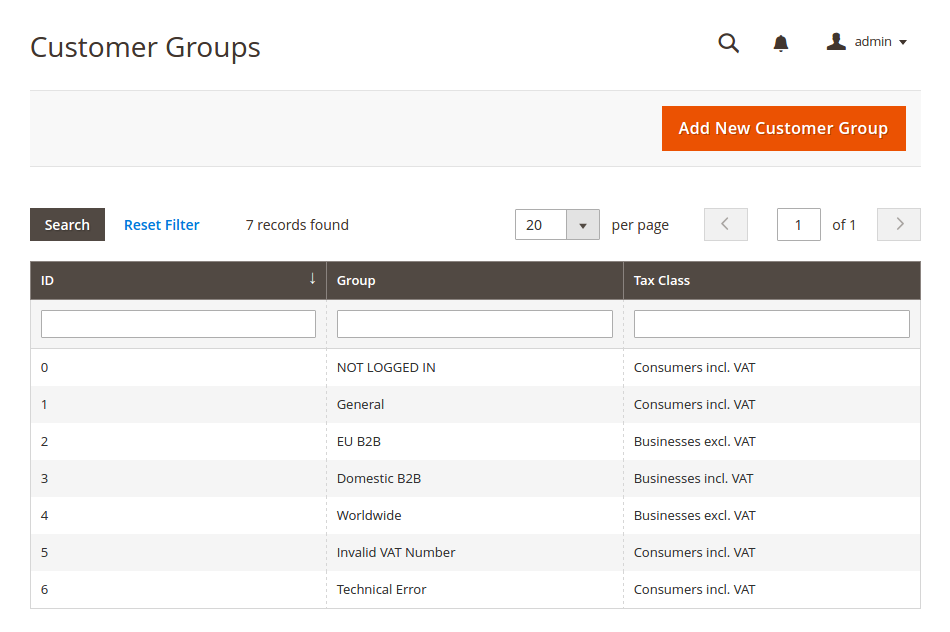
Navigate to Customers → Customer Groups.
As an example, we recommend the following customer groups; that is, for the following groups, assignments can be made based on the customer's billing address. When our module assigns customer groups, it always does so based on the customer's default billing address.
Settings for the configuration in Magento
Since Magento itself supports a rudimentary VAT ID validation, there are various setting options within the configuration. In the following, we go through the most important settings.
Enabling the field for the VAT ID
- Navigate to
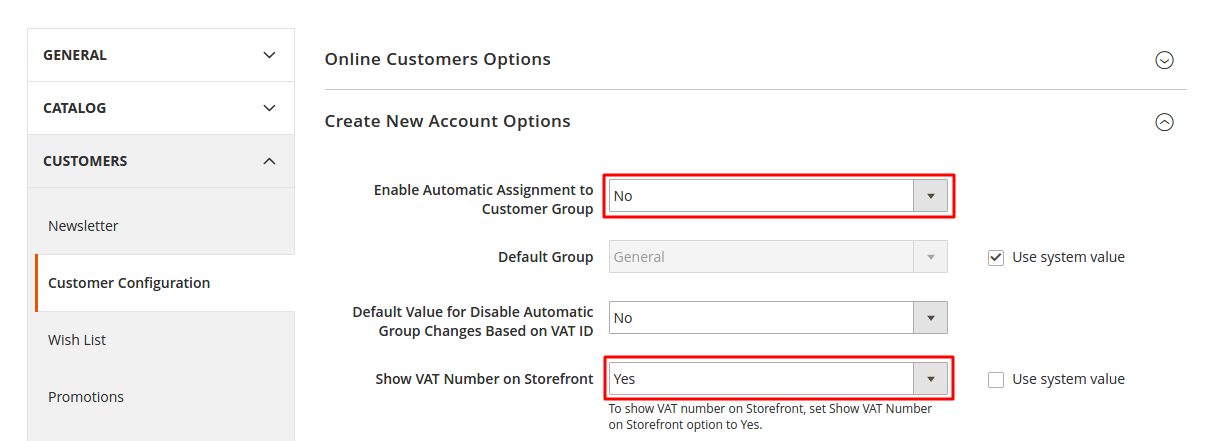
Stores → Configuration → (Customers) Customer Configuration - Under
Create New Account Options, set theEnable Automatic Assignment to Customer Groupoption toNoin order to disable the validation included in the Magento core. This is important, as it would otherwise lead to conflicts with our module. - Under
Create New Account Options, set theShow VAT Number on Frontendoption toYes - Under
Create New Account Options, set theDefault Groupoption, for example toGeneral - Under
Name and Address Options, disable theShow Tax/VAT Numberoption withNo
Setting the tax calculation method
- Navigate to
Stores → Configuration → (Sales) Tax - Under
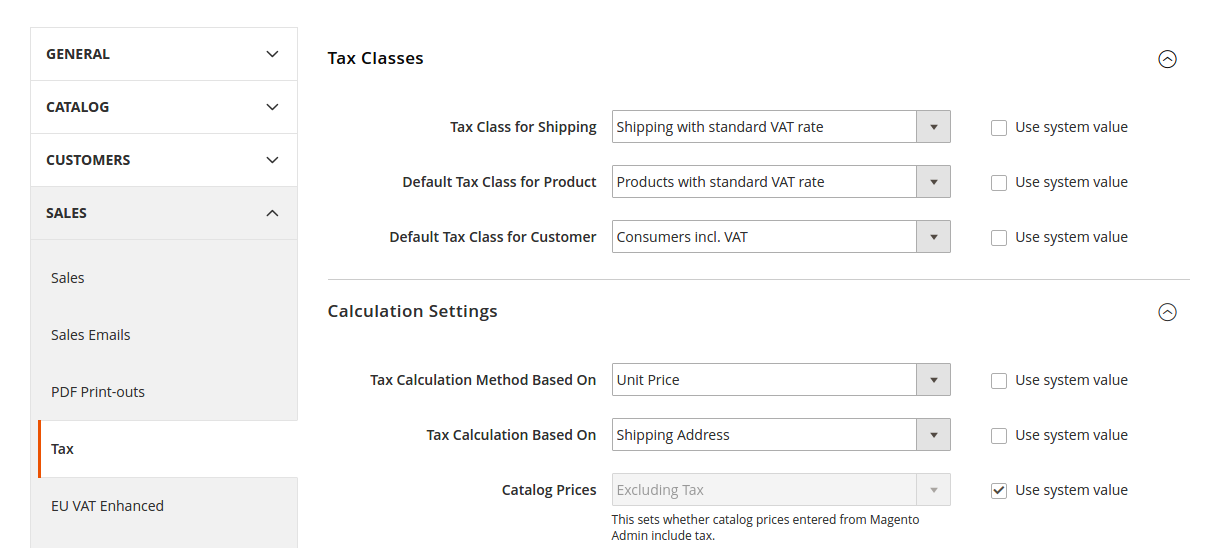
Tax Classes, set theTax Class for Shippingoption toShipping with standard VAT rate - Under
Tax Classes, set the"Default Tax Class for Product"option to"Products with standard VAT rate" - Under
Tax Classes, set the"Default Tax Class for Customer"option toConsumers incl. VAT - Under
Calculation Settings, set the"Tax Calculation Based On"option toShipping address - Under
Default Tax Destination Calculation, set theDefault Countryoption tothe domestic country
Setting the shipping origin country
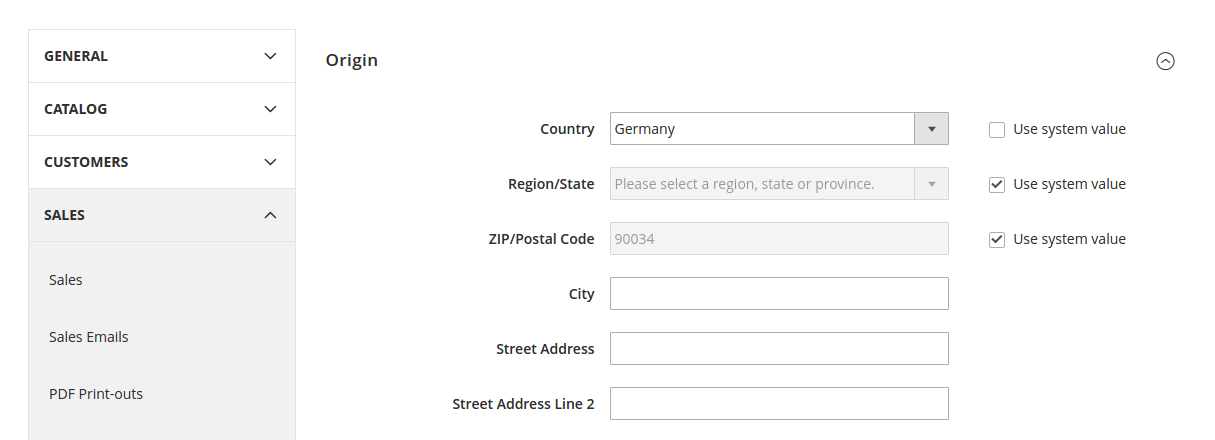
This defines the country of origin (domestic country) from which you ship the goods.
- Navigate to
Stores → Configuration → (Sales) Shipping Settings - Set the domestic country
With that, the most important settings have been made and you can proceed with configuring the module.