Troubleshooting
Sometimes things do not work as expected and it can be difficult to find out why. We clarify a few common problems:
Problem with VAT calculation on orders
This problem can occur for various reasons. You should check the following:
- Compare the addresses used against the use case compatibility matrix. These are the cases supported by the extension.
- Are any validation details visible in the order comments? The module allows Magento to calculate VAT if one of the flagged results is incorrect or invalid:

If none of these points apply to your problem, please open a new support ticket in your customer account.
Correct use of the VAT number field
Magento supports two different fields for tax numbers. The first field, labelled "Tax/VAT" (taxvat), is linked to the customer entity. This name can be misleading, as it is primarily intended only as a "tax number" field, suitable for countries with unique personal tax numbers.
Since Magento 1.7, a second field, "VAT number" (vat_id), has been introduced, which allows you to enter a proper EU VAT number. This is linked to the customer's address, which is decisive for the VAT calculation. As the VAT calculation is based on the address data, this field is the field for EU VAT numbers, which are normally assigned to businesses.
With our extension, only the "VAT number" field (vat_id) is supported.
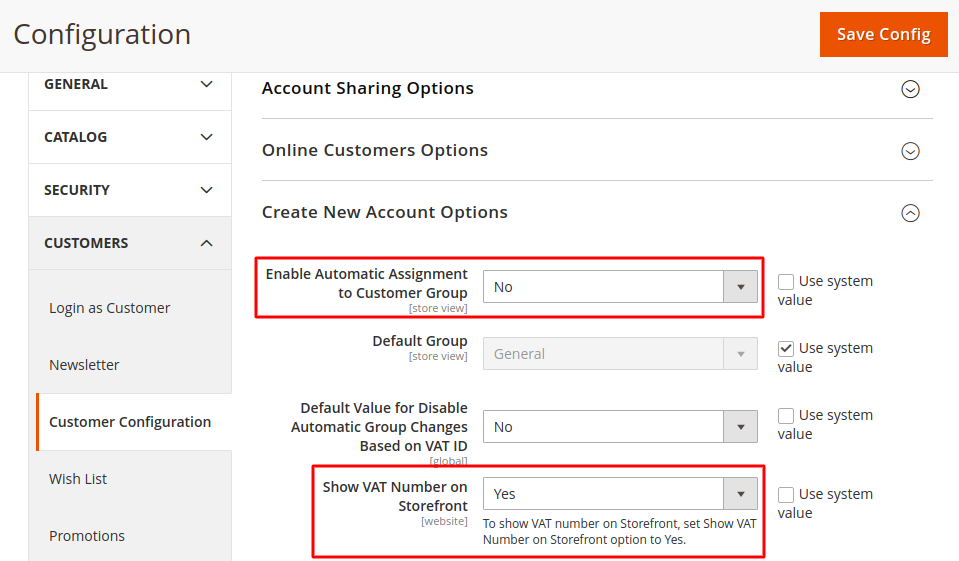
To enable this field, please navigate to Stores -> Configuration -> Customer Configuration. Under Create New Account Options, set the Show VAT Number on Frontend option to Yes.
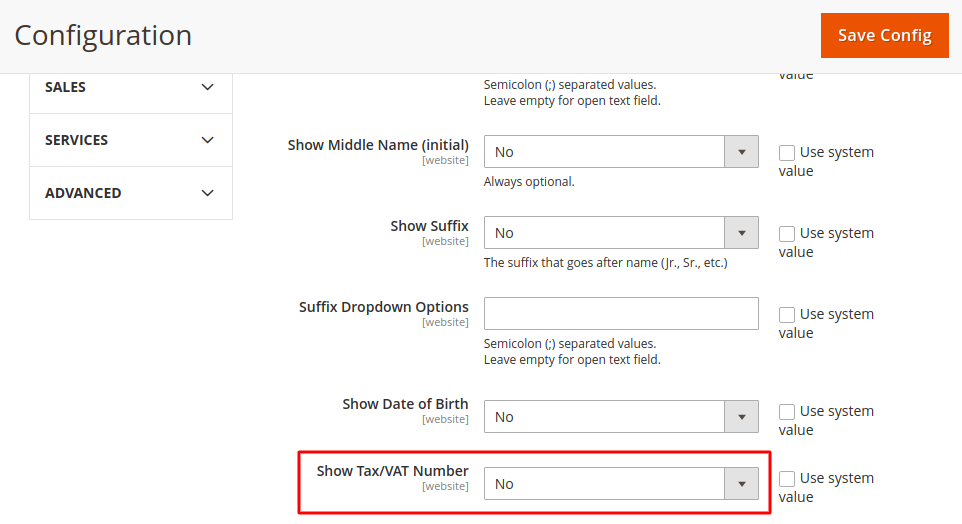
To avoid confusion, we recommend disabling the account-based "Tax/VAT" field (taxvat). To do so, navigate to the customer configuration settings under Name and Address Options and set Show Tax/VAT Number to No.
Debug mode and logging
If a problem cannot be clarified using the points above, the detailed tax calculation log will help.
- Enable debug mode under
Stores → Configuration → (Sales) EU VAT Enhanced → Module Information → Debug Modeby setting it to Yes. - Narrow down the logging so that it remains analysable: for example, add a product to the cart and open the cart page. Then clear the log file and reload the page – this way the log contains only the relevant operation.
- The log is written to
var/log/euvat.log. - Reproduce the problem and analyse the file, or attach it to your support ticket.
Self-test of the tax calculation
For a quick check of your configuration, a console command calculates the tax for the supported scenarios:
bin/magento geissweb:selftest:vatcalc
If the result deviates from your expectation, check the tax rules, rates and the dynamic tax classes under Tax Classes & Calculation.
Belgian VAT ID format (BE1)
Belgium changed its scheme for issuing VAT IDs: numbers can now start with either BE0 or, newly, BE1. To support the new numbers, use at least version 1.20.9 of the extension, which contains the adjustment for the new scheme.
If that version is not available to you, extend the updates and support period for your license via your customer account under "Downloads and license keys". Alternatively, you can apply the required change yourself.
In the file Validator/Syntax.php:
case 'BE': // Belgium
    $regex = '(BE)?[01][0-9]{9}';
    break;
In the files view/base/web/js/model/syntax-validation.js and/or view/base/web/js/form/element/vat-number-base.js:
'BE': '(BE)?[01][0-9]{9}$',